
Block Files from Running
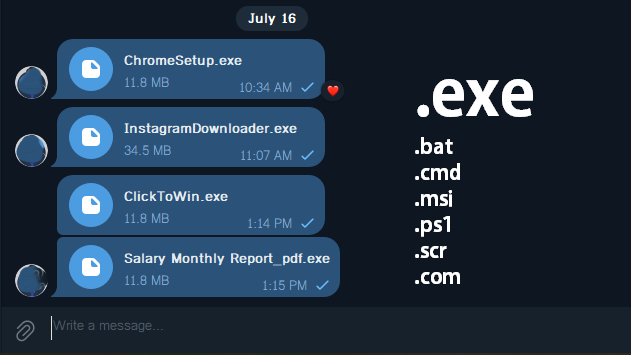
Telegram Desktop makes it easy to receive files, but scammers may send malicious programs disguised as invoices, photos, documents, updates, or other useful tools. These files often use executable extensions such as:
.exe
.bat
.cmd
.msi
.ps1
.scr
.com
When a user clicks an executable file in Telegram, Telegram normally displays a Run or Cancel warning. However, a user may still click Run by mistake.
This guide shows two ways to prevent .exe files downloaded through Telegram Desktop from running:
- Method 1: Use Command Prompt
- Method 2: Use the Additional Rules wizard
The examples below use this Telegram download folder:
C:\Users\<User Profile>\Downloads\Telegram Desktop
Replace it with your actual Telegram download folder when necessary.
Before You Begin
This guide uses Windows Software Restriction Policies.
It is mainly intended for:
Windows 10 Pro
Windows 10 Enterprise
Windows 11 Pro
Windows 11 Enterprise
To check your Windows version:
- Press
Windows + R - Type:
winver
- Press Enter.
You should also confirm Telegram’s download location.
In Telegram Desktop, open:
Settings
→ Advanced
→ Download Path
Method 1: Block Telegram EXE Files Using Command Prompt
This is the fastest method for administrators or IT support staff.
Step 1: Open Command Prompt as Administrator
- Open the Start menu.
- Type:
cmd
- Right-click Command Prompt.
- Select Run as administrator.
Step 2: Enable Software Restriction Policies
Run these commands:
reg add "HKLM\SOFTWARE\Policies\Microsoft\Windows\Safer\CodeIdentifiers" /v DefaultLevel /t REG_DWORD /d 262144 /f

reg add "HKLM\SOFTWARE\Policies\Microsoft\Windows\Safer\CodeIdentifiers" /v TransparentEnabled /t REG_DWORD /d 1 /f
These commands keep normal applications allowed while enabling restriction rules for selected locations.
Step 3: Block EXE Files in the Telegram Download Folder
Example your <User Profile> is PROGRAMMING
Run:
reg add "HKLM\SOFTWARE\Policies\Microsoft\Windows\Safer\CodeIdentifiers\0\Paths\{11111111-1111-1111-1111-111111111111}" /v ItemData /t REG_SZ /d "C:\Users\<User Profile>\Downloads\Telegram Desktop\*.exe" /f

reg add "HKLM\SOFTWARE\Policies\Microsoft\Windows\Safer\CodeIdentifiers\0\Paths\{11111111-1111-1111-1111-111111111111}" /v SaferFlags /t REG_DWORD /d 0 /f

reg add "HKLM\SOFTWARE\Policies\Microsoft\Windows\Safer\CodeIdentifiers\0\Paths\{11111111-1111-1111-1111-111111111111}" /v Description /t REG_SZ /d "Block EXE files from Telegram Desktop" /f
The important part is:
C:\Users\<User Profile>\Downloads\Telegram Desktop\*.exe
This means that every .exe file inside that folder is set to Disallowed.
Step 4: Apply the Policy
Run:
gpupdate /force
For the most reliable result, restart Windows:
shutdown /r /t 0
Step 5: Confirm the Rule Exists
Run:
reg query "HKLM\SOFTWARE\Policies\Microsoft\Windows\Safer\CodeIdentifiers\0\Paths" /s
You should see something similar to:
ItemData      REG_SZ       C:\Users\<User Profile>\Downloads\Telegram Desktop\*.exe
SaferFlags    REG_DWORD    0x0
SaferFlags 0x0 means the path is set to Disallowed.
Optional: Block More Dangerous File Types
Blocking .exe is helpful, but malicious programs can also use other extensions.
Create a separate rule for each extension.
Block BAT files
reg add "HKLM\SOFTWARE\Policies\Microsoft\Windows\Safer\CodeIdentifiers\0\Paths\{22222222-2222-2222-2222-222222222222}" /v ItemData /t REG_SZ /d "C:\Users\<User Profile>\Downloads\Telegram Desktop\*.bat" /f

reg add "HKLM\SOFTWARE\Policies\Microsoft\Windows\Safer\CodeIdentifiers\0\Paths\{22222222-2222-2222-2222-222222222222}" /v SaferFlags /t REG_DWORD /d 0 /f
Block CMD files
reg add "HKLM\SOFTWARE\Policies\Microsoft\Windows\Safer\CodeIdentifiers\0\Paths\{33333333-3333-3333-3333-333333333333}" /v ItemData /t REG_SZ /d "C:\Users\<User Profile>\Downloads\Telegram Desktop\*.cmd" /f

reg add "HKLM\SOFTWARE\Policies\Microsoft\Windows\Safer\CodeIdentifiers\0\Paths\{33333333-3333-3333-3333-333333333333}" /v SaferFlags /t REG_DWORD /d 0 /f
Block MSI installers
reg add "HKLM\SOFTWARE\Policies\Microsoft\Windows\Safer\CodeIdentifiers\0\Paths\{44444444-4444-4444-4444-444444444444}" /v ItemData /t REG_SZ /d "C:\Users\<User Profile>\Downloads\Telegram Desktop\*.msi" /f

reg add "HKLM\SOFTWARE\Policies\Microsoft\Windows\Safer\CodeIdentifiers\0\Paths\{44444444-4444-4444-4444-444444444444}" /v SaferFlags /t REG_DWORD /d 0 /f
Block PowerShell scripts
reg add "HKLM\SOFTWARE\Policies\Microsoft\Windows\Safer\CodeIdentifiers\0\Paths\{55555555-5555-5555-5555-555555555555}" /v ItemData /t REG_SZ /d "C:\Users\<User Profile>\Downloads\Telegram Desktop\*.ps1" /f

reg add "HKLM\SOFTWARE\Policies\Microsoft\Windows\Safer\CodeIdentifiers\0\Paths\{55555555-5555-5555-5555-555555555555}" /v SaferFlags /t REG_DWORD /d 0 /f
After adding the rules, run:
gpupdate /force
And then reboot your PC.
Method 2: Block EXE Files Using the Additional Rules Wizard
This method is easier for users who prefer a graphical interface.
Step 1: Open Local Security Policy
Press:
Windows + R
Type:
secpol.msc
Press Enter.
Step 2: Open Software Restriction Policies
Navigate to:
Security Settings
→ Software Restriction Policies
When you see:
No Software Restriction Policies Defined
right-click Software Restriction Policies and select:
New Software Restriction Policies
After creating the policy, you should see:
Security Levels
Additional Rules
Enforcement
Designated File Types
Trusted Publishers
Step 3: Create a New Path Rule
- Click Additional Rules.
- Right-click an empty area in the right panel.
- Select:
New Path Rule
Enter this path:
C:\Users\PROGRAMMING\Downloads\Telegram Desktop\*.exe
Set the security level to:
Disallowed
Add a description such as:
Block EXE files from Telegram Desktop
Click Apply, then OK.
Step 4: Add Rules for Other File Types
Repeat the same steps for:
C:\Users\PROGRAMMING\Downloads\Telegram Desktop\*.bat
C:\Users\PROGRAMMING\Downloads\Telegram Desktop\*.cmd
C:\Users\PROGRAMMING\Downloads\Telegram Desktop\*.com
C:\Users\PROGRAMMING\Downloads\Telegram Desktop\*.msi
C:\Users\PROGRAMMING\Downloads\Telegram Desktop\*.ps1
C:\Users\PROGRAMMING\Downloads\Telegram Desktop\*.scr
Each rule should use:
Security level: Disallowed
Step 5: Apply the New Policy
Open Command Prompt as administrator and run:
gpupdate /force
Then sign out, sign back in, or restart the computer.
How the Protection Works
After the policy is applied, the process looks like this:
- A user receives an
.exefile in Telegram. - The user clicks the file.
- Telegram displays Run or Cancel.
- The user clicks Run.
- Windows checks the Software Restriction Policy.
- Windows blocks the executable.
- The program does not start.
Sometimes Telegram may appear to do nothing after the user clicks Run. This is normal. Telegram does not always display the Windows policy error.
The important point is that the executable does not run.
How to Test the Rule Safely
Do not test with an unknown executable from Telegram.
Instead:
- Copy a trusted Windows program such as:
C:\Windows\System32\notepad.exe
- Paste it into:
C:\Users\PROGRAMMING\Downloads\Telegram Desktop
- Rename it to:
test.exe
- Double-click it.
When the rule is working, Notepad should not open.
Opening the file directly from File Explorer may display a message similar to:
This program is blocked by group policy.
When opening it through Telegram, Telegram may remain silent after the user clicks Run.
Show a Friendly Warning Message
Software Restriction Policies block the file, but Telegram may not explain what happened.
A more user-friendly setup can display a message such as:
Security Notice

This file was blocked to protect your computer.

Programs downloaded from Telegram are not allowed to run.
Please contact IT support if you believe the file is safe.
Find the Blocked Event
Open Event Viewer:
eventvwr.msc
Navigate to:
Windows Logs
→ Application
Look for:
Source: SoftwareRestrictionPolicies
Event ID: 866
Right-click the event and select:
Attach Task To This Event
For the task action, choose Start a program.
Use:
Program/script:
C:\Windows\System32\msg.exe
Use these arguments:
* /TIME:20 "Security Notice: This file was blocked to protect your computer. Programs downloaded from Telegram are not allowed to run. Please contact IT support."
Now, when Windows blocks the Telegram executable, the user should see a friendly warning.
How to Remove the Command Prompt Rule
To remove the .exe blocking rule, open Command Prompt as administrator and run:
reg delete "HKLM\SOFTWARE\Policies\Microsoft\Windows\Safer\CodeIdentifiers\0\Paths\{11111111-1111-1111-1111-111111111111}" /f
Then apply the change:
gpupdate /force
Restart Windows if necessary.
Important Security Notes
This rule blocks an executable only while it remains inside the protected Telegram download folder.
A user may still be able to copy the file to another folder and run it from there. For stronger protection, organizations should also consider:
- Using standard user accounts instead of administrator accounts
- Enabling Microsoft Defender
- Enabling SmartScreen and reputation-based protection
- Blocking execution from other download and temporary folders
- Using AppLocker or Windows Defender Application Control in business environments
- Training users not to trust unexpected executable files
Also remember that malicious programs may be hidden inside ZIP, RAR, ISO, or other archive files. Blocking .exe files in the Telegram folder is an important layer of protection, but it should not be the only security measure.
Conclusion
Blocking executable files from the Telegram Desktop download folder can prevent users from accidentally launching malicious software.
For quick deployment, use the Command Prompt method.
For easier manual configuration, use:
Local Security Policy
→ Software Restriction Policies
→ Additional Rules
The recommended setup is:
Block .exe, .bat, .cmd, .com, .msi, .ps1 and .scr
Enable Microsoft Defender
Use a standard Windows account
Display a friendly warning message
With this configuration, even when a user clicks Run inside Telegram, Windows prevents the executable from starting.
